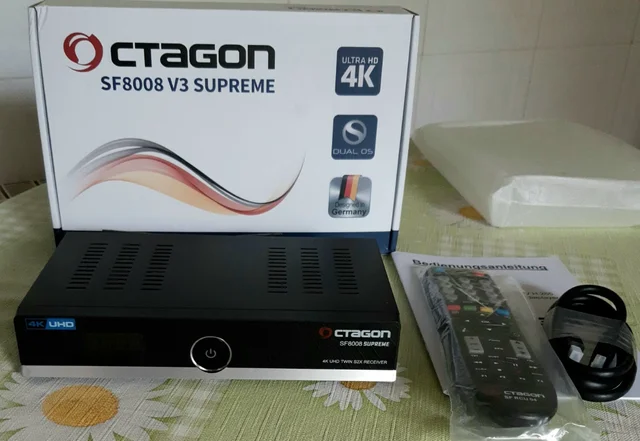
Have you heard of Enigma 2 Linux satelitte iptv boxes. They are awesome. Did you know you can watch your favourite 4K media files. Straight from your PC drives with Enigma 2 Boxes on TV. It supports many formats MKV, VP9, MP4, and so on. When i tested it supports easily up to 3840 x 2160,60FPS. The best thing was 60FPS cause frame rate made video so smooth like a butter :).
1. Before we start what we gonna need a box of course. I used older model Gigablue UHD TRIO 4K or OCTAGON SF8008 V3 Supreme. Octagon has newer hardware highly recommended if you can get.
2. While octagon supports Dual WIFI for max performance ETHERNET CABLE is what we want.
3. Obviously Nice fibre connection with a Router at home and ethernet ports.
4. Basic tutorial how to install system in the box. Only necessary if you received box without any system inside. Also teaches basic of the system and how to flash correctly so you can be more comfortable.
Step 2. Setting up network [ Make sure Ethernet cable lan is connected in the box and router]
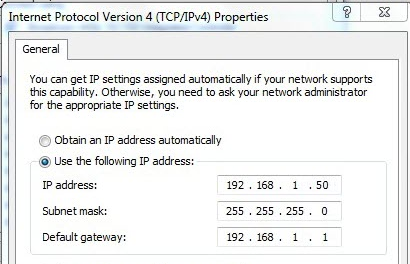
[ Open Ethernet adapter settings in PC] [You can copy network settings from there but change ip address ending into something else not the one your pc uses right now] Make sure ending is not used by any other device to avoid conflict.
Step-by-Step Network Setup: Access Menu: Press the Menu button on your Octagon SF8008 remote.
Navigate to Network:
Go to System Settings (or similar) and then select Network.
Select WLAN: Ensure Internet via WLAN is selected and ticked (blue circle/dot).
Choose Network Type: Set the IP settings to Dynamic IP (DHCP). Find Your Network: Go to WLAN Available Networks and select your home Wi-Fi network from the list.
Enter Password: Click Set (or similar) and enter your Wi-Fi password when prompted. Save Settings:
Click the Tick icon or Save button at the top to confirm your password. Reboot the Box: Crucially, go back to the system menu and perform a Reboot (not just standby) to finalize the network connection.
Step 3. Create another user only be used to connect to shared folder. Follow this tutorial to create a user.
Step 4. Share a media folder you want to use later in the box. [Basic tutorial]
Final step. Connect to your shared folder inside Octagon box. or Gigablue
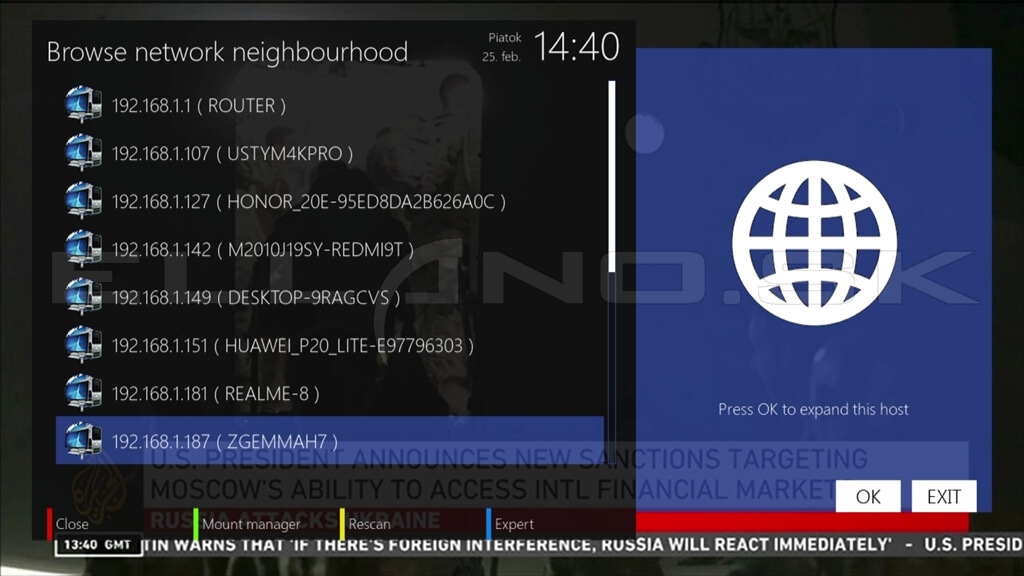
Find your pc in network neigbourhood
-
Press the Menu button on your remote control.
-
Navigate to Setup.
-
Select System.
-
If not already in expert mode, you may need to access Expert settings.
-
Select Network.
-
Choose MountManager (or Network connections in some versions).
-
Within the Mount Manager, you will find options to scan for and add new network mount points (e.g., Samba/CIFS or NFS shares).
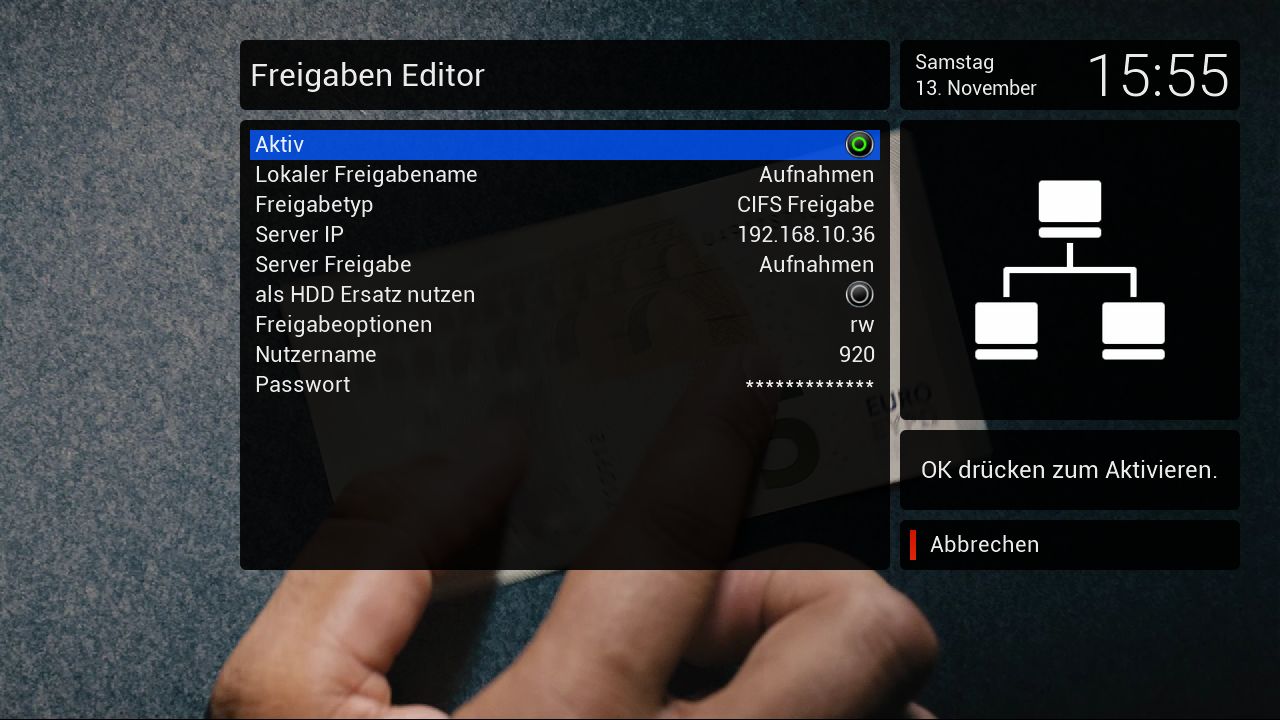
Select CIF share option if you see. SMB should also work. You’ll have to enter your username and password the one you created before in user account. [Server ip is your local Computers ip can be found in cmd by typing ipconfig command.
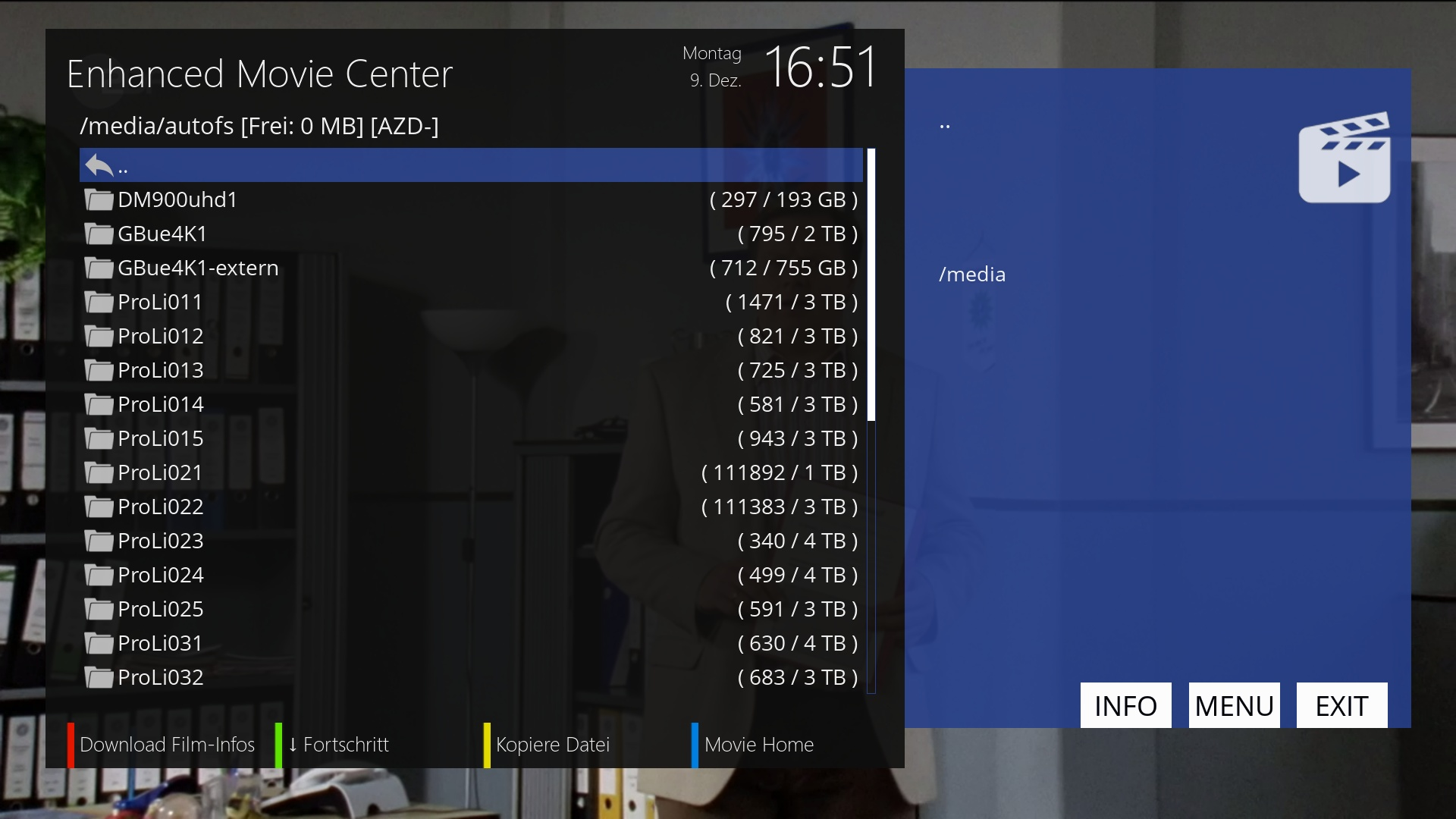
If you did everything correctly you should see a list of your media files then you can watch them straight away in 4K. Hope you enjoyed this tutorial :).
About the Author